Recert
Public pages for the Recert app: getting started, privacy policy, security, support
Getting started with Recert
Watch it work (1 minute, no sound)
Snapshot, campaign, a reviewer's keep and revoke decisions, sign-off, and the evidence export, in one pass.
Recert runs an access review of your Jira projects and Confluence spaces. It works out who can see or administer each one and why, sends each review to the person who owns that project or space, records every keep / revoke / exception decision with a reason and a timestamp, and exports the evidence for your auditor.
How to read the pictures. The red numbers in each picture match the numbered steps next to it. Click any picture to open it full size.
Who does what. A Jira administrator takes snapshots, creates campaigns, reopens signed reviews and exports evidence. A reviewer (the project lead or space administrator) only decides the lines assigned to them and signs off. Nothing in Recert changes anyone’s access; your administrators carry out revocations in Jira or Confluence as usual.
Before you start. Install Recert from the Atlassian Marketplace on your Jira Cloud site and accept the requested permissions. Confluence spaces on the same site are reviewed from this one installation; you do not need a separate Confluence install.
Messages appear at the top of the Recert page, not next to the button you clicked. If nothing seems to happen, scroll up.
1. Open Recert
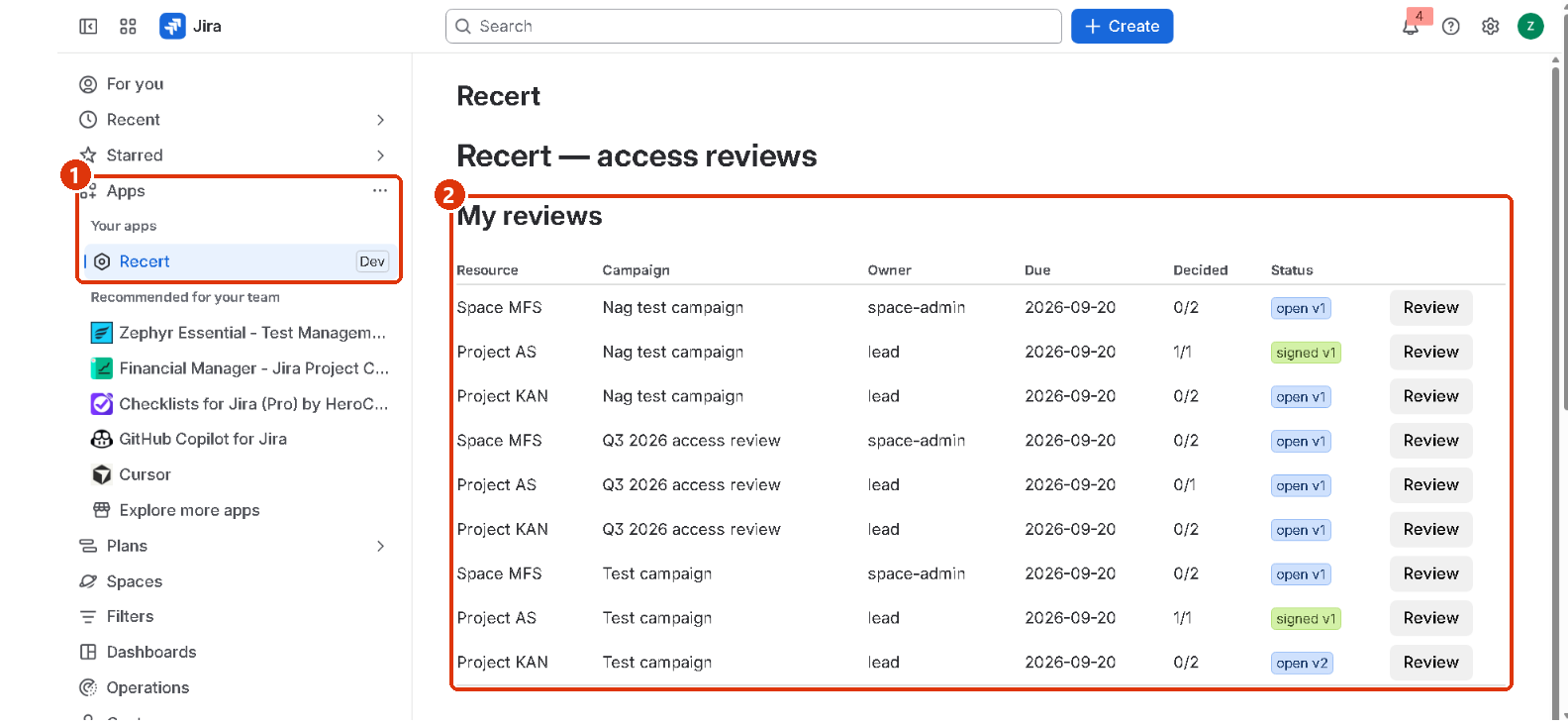
- In Jira’s left sidebar, open Apps, then click Recert.
- My reviews lists every review assigned to you, with its campaign, due date, how many lines are decided, and its status (open or signed). Click Review on a row to open it.
On a fresh install the tables are empty and Recert says “No campaigns yet. Take a snapshot, then create one.” That is expected; go to step 2.
2. Take a snapshot (Jira administrator)
A snapshot records who has access to every project and space at this moment, and through which group, role or permission. Every review is made against a snapshot, so the evidence can be reproduced later.

- Scroll down to Campaigns and click Take a new snapshot (background).

- A blue message appears at the top of the page: “Snapshot started. It runs in the background; use Refresh status below to watch it. A campaign can be created once it says ready.” Under Latest snapshot a status lozenge and a progress line (“12 of 40 resources · started 2026-09-25”) show how far it has got; click Refresh status until it reads ready. Usually a minute or two, longer on large sites. If the lozenge reads failed, that snapshot cannot be used for a campaign — take a new one.
If you create a campaign before the snapshot is ready, Recert answers “no ready snapshot; create one first”. Wait a minute and try again. Snapshots that no campaign uses are deleted automatically after 90 days.
3. Plan and create a campaign (Jira administrator)
A campaign sends one review per project or space to its owner.

- Type a name for the campaign, for example Q4 2026 access review.
- Optional, Reminder issues in project: type a Jira project key (for example
OPS). Recert then creates one Jira issue per review in that project, assigned to the reviewer, so Jira’s own notifications remind them. Each issue is resolved automatically when its review is signed off. - Click Preview plan. A Plan preview table appears below the campaign list, with one row per project and space and its default owner: the project lead for Jira projects, the first space administrator for Confluence spaces. A resource with no eligible owner is assigned to you and marked unowned.

- Include: switch a row off to leave that project or space out of this campaign.
- Override owner: pick a person to send that review to someone other than the default owner.

- Scroll back up and click Create campaign from preview. If you skipped the preview, the same button reads Create campaign from latest snapshot.
Recert confirms how many reviews it created. Reviews are due 14 days later. Each reviewer now sees their reviews under My reviews, and the campaign appears in the Campaigns list with a Signed count.
4. Review and sign off (reviewer)
Open Apps → Recert, find the row under My reviews and click Review. A review of a Jira project can also be opened from the Recert tab inside that project.

- People to certify lists each person with access, what they can do (See or Administer) and Why they have it (the group, role or permission that grants it).
- To revoke or record an exception, first type the reason in the Reason box.
- Then click Keep, Revoke or Exception on that person’s line. Keep needs no reason. Each decision is saved with your name and the time (UTC).
- When every line is decided, click Sign off. It shows how many lines are decided and stays greyed out until all are. Decisions are then locked.
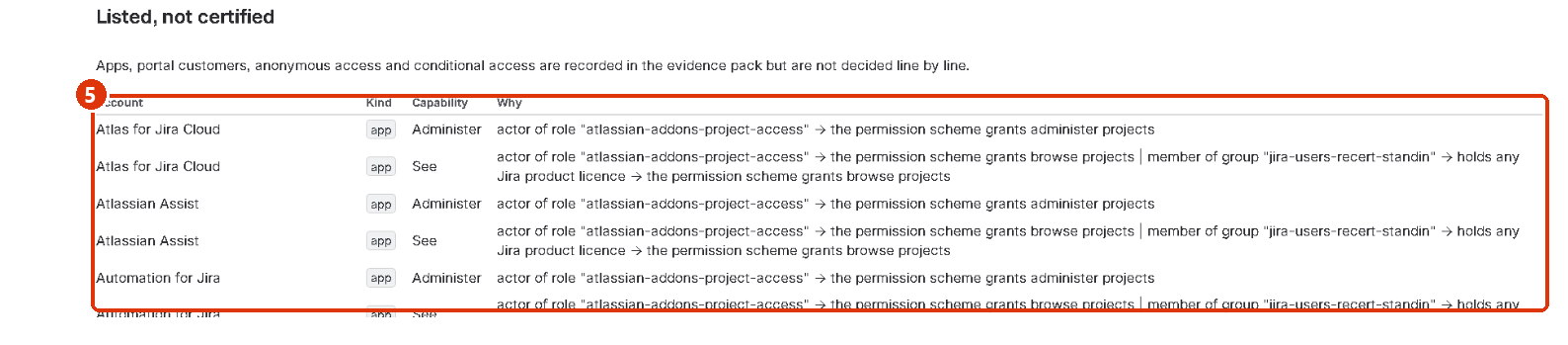
- Below the Sign off button, Listed, not certified shows apps, portal customers, anonymous access and conditional access (for example “the assignee of an issue”). They are included in the evidence, but you do not decide them.
Only a Jira administrator can Reopen a signed review. Reopening creates a new version and keeps the earlier decisions visible as Superseded, so evidence is never silently changed.
5. Export the evidence (Jira administrator)

- In the Campaigns list, click Evidence CSV on the campaign’s row.

- An Evidence section appears. Type the key of the Jira project where the evidence should be filed.
- Click Attach CSV files to a new Jira issue. Recert creates an issue named Evidence pack: <campaign> in that project with both files attached. Download them from the issue and give them to your auditor.
- The two files and a preview of the first are shown here so you can check them before
attaching:
<campaign>-decisions.csv: every certified line with its decision, reason, who decided and the sign-off.<campaign>-listed.csv: the accounts that were listed but not certified.
Reminders and the daily job
Once a day Recert comments on open reminder issues — seven days before the due date, the day before, and once a review is overdue — deletes snapshots older than 90 days that no campaign uses, and reports the accounts it stores to Atlassian so display names stay current and closed accounts are erased. A reminder issue is resolved as soon as its review is signed off, not by this job. Run daily job now (admin), next to the snapshot button, runs the same job immediately; the message it prints is the job’s summary.
Where the data lives
Everything Recert stores stays in your Atlassian site’s Forge storage. The app makes no calls outside Atlassian and the vendor has no access to your data. Details are in the privacy policy and the security policy.
Troubleshooting
| You see | Cause and fix |
|---|---|
| Nothing happens when I click a button | The message is at the top of the Recert page. Scroll up. |
| Only Jira administrators can create campaigns | Snapshots, campaigns, reopen and evidence export need Jira administrator rights. Ask an admin, or grant the role. |
| no ready snapshot; take one first | No snapshot has finished yet. Click Take a new snapshot (background), wait a minute or two, then create the campaign. |
| Nothing assigned to you | You do not own any review in an open campaign. Owners are the project lead or space administrator unless an admin overrode them. |
| A project or space is missing from the preview | It was not in the latest snapshot. Take a new snapshot after creating projects or spaces. |
| Sign off is greyed out | Some lines are still Undecided. The button shows how many are decided. |
| Why they have it says path unavailable | The access path could not be reconstructed for that line (typical for some team-managed projects). The decision still records normally. |
| The reminder issue was not created | The Reminder issues in project key must be a project the app can create issues in. The issues are created in the background, so wait a minute and check the project; the campaign message reports a queueing failure. |
| “The Recert licence for this site is inactive or expired” | The trial or subscription has lapsed. Snapshots, campaigns and evidence export stop; reviews already open can still be decided and signed off. Renew in Atlassian administration. |
| “Only the owner of this review or a Jira administrator may view it” | Reviews are visible to the person they were routed to, the person who created the campaign, and Jira administrators. |
| “Could not check your Jira permissions” | Jira was busy when the app asked whether you administer it. Wait a moment and try again. |
Questions: see the support page or email support@recert.dev.